Private Endpoint
Private Endpoints let Azure PaaS services expose a private IP in your VNet so traffic stays on the Azure backbone and does not depend on public internet routing.
This pattern is used when you need to:
- Reduce or remove public exposure of platform services
- Enforce private-path access from trusted VNets and peered networks
- Apply centralized DNS and network controls to service access
Important
A working private endpoint setup always includes three parts: endpoint, DNS, and service network access policy. Missing DNS configuration is the most common reason private endpoint implementations fail.
Standard Configuration Pattern (All Services)
Use this baseline flow for any supported Azure resource:
Step 1 — Prepare networking
- Create or choose a dedicated subnet for private endpoints
- Avoid subnet delegation conflicts in that subnet
- Confirm the calling workload (VM, App Service, AKS, Function) can reach the VNet
Step 2 — Create the private endpoint
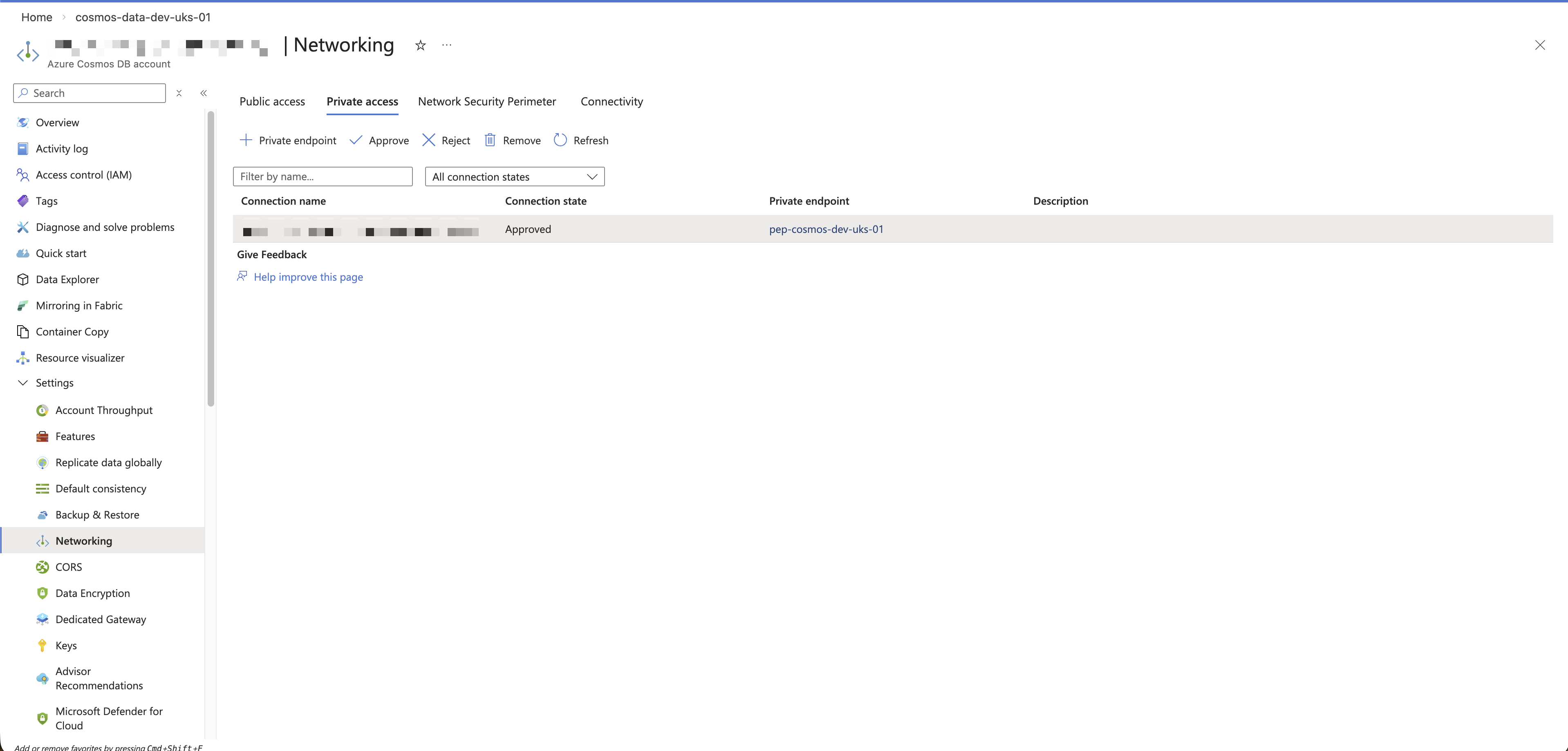
- In the target resource, open Networking or Private endpoint connections
- Create a new private endpoint in your selected VNet/subnet
- Select the correct target sub-resource for that service
Step 3 — Configure private DNS
- Use the recommended
privatelinkDNS zone for that resource type - Link the zone to each VNet that must resolve the endpoint privately:
- Go to Private DNS zones → select your zone (for example
privatelink.database.windows.net) - Open Virtual network links → + Add
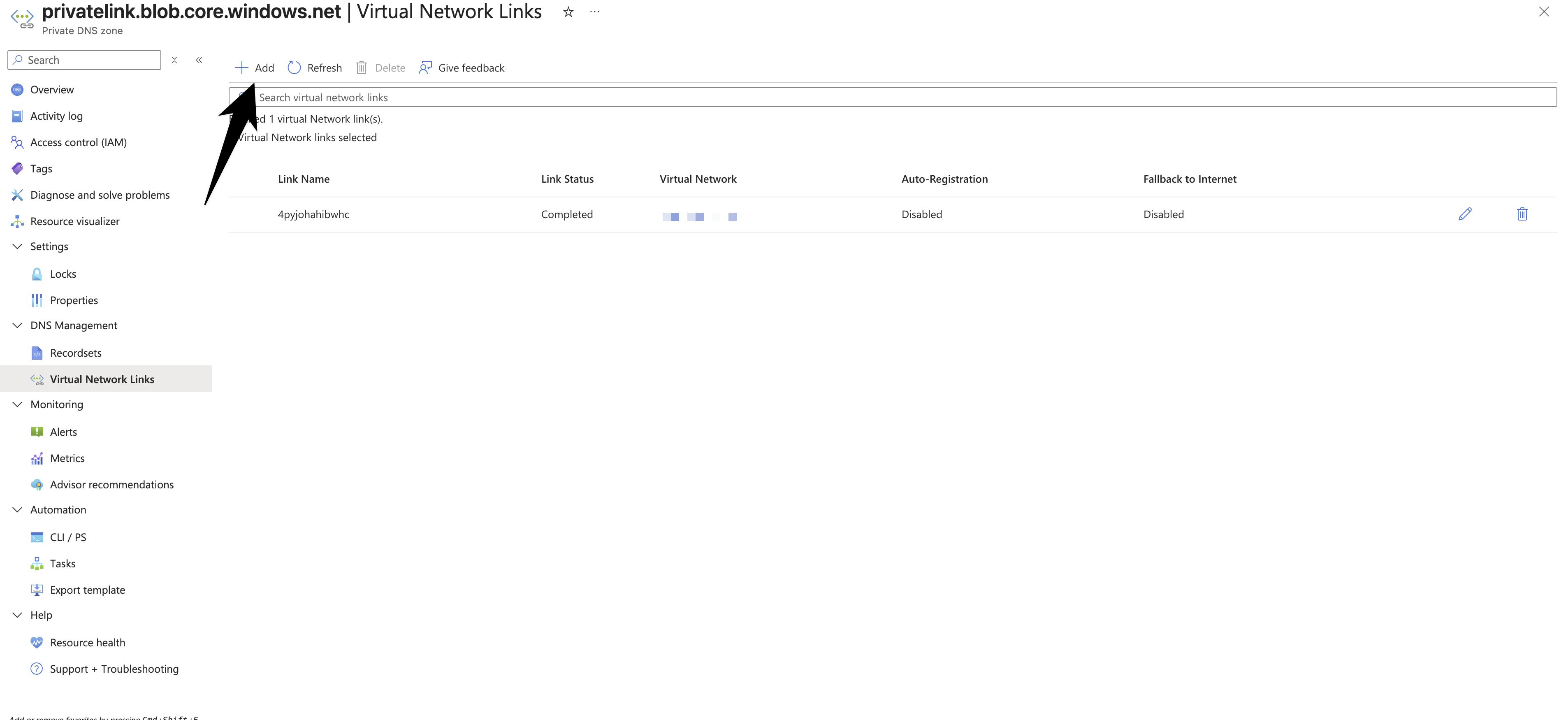
- Set Link name (for example
vnet-prod-link) - Select the target Virtual network
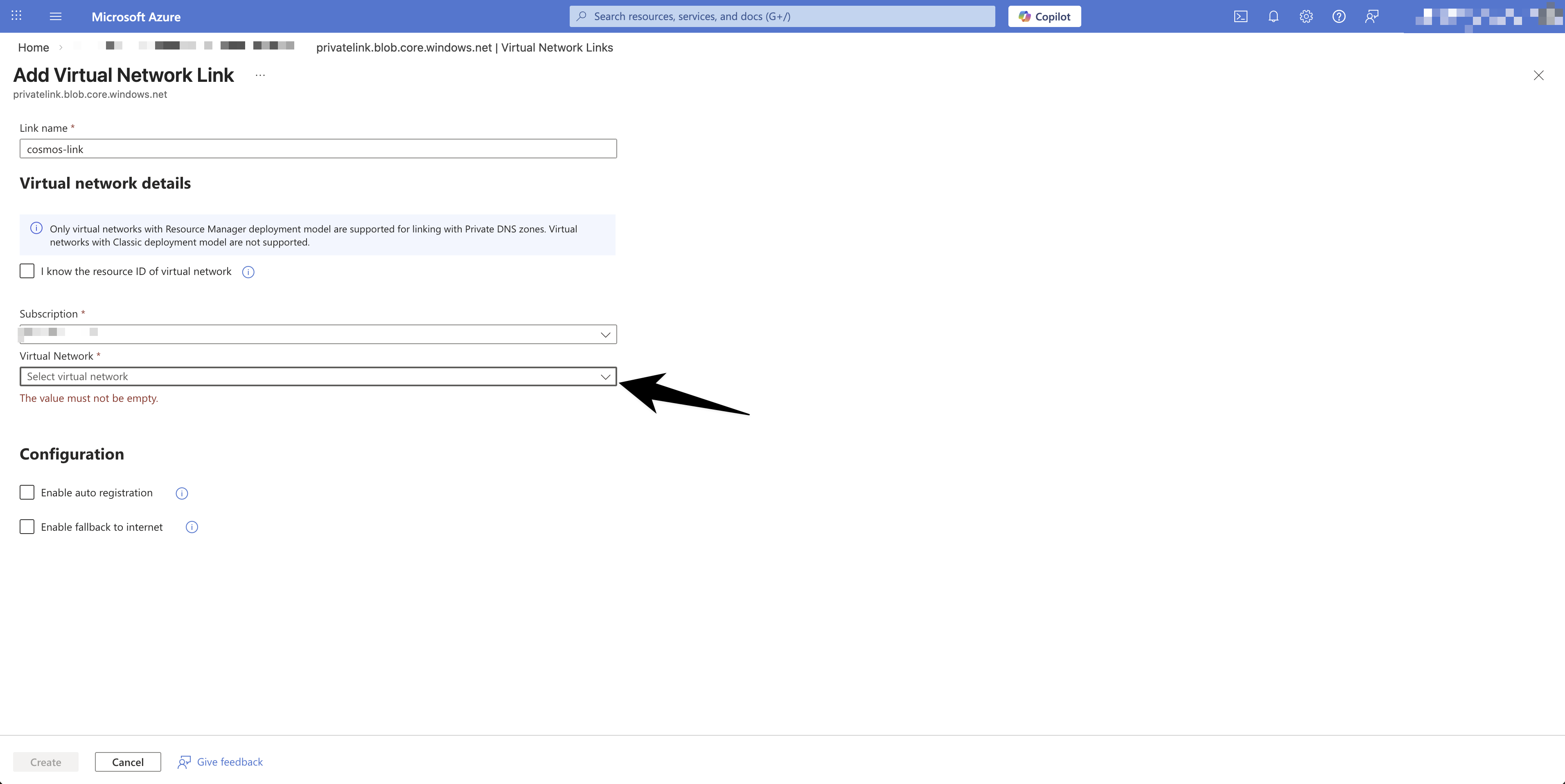
- Set Enable auto registration to No
- Select Create to save the link
- Go to Private DNS zones → select your zone (for example
Step 4 — Validate name resolution and connectivity
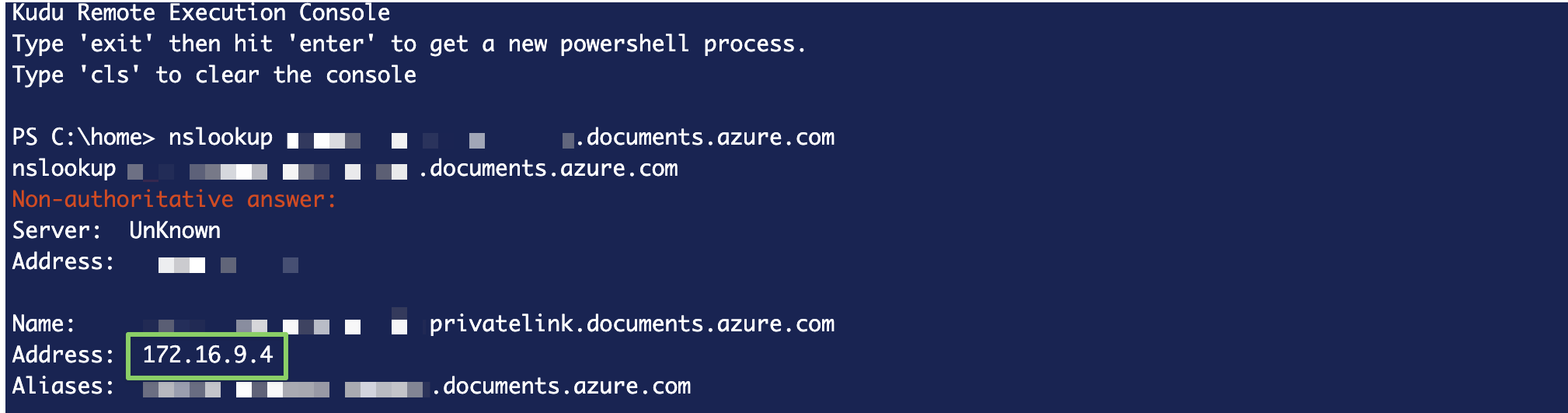
- From the calling host, run
nslookupon the service FQDN - Confirm DNS resolves to a private IP in your VNet range
- Test application connectivity using normal connection settings
Step 5 — Lock down public access
- Disable public network access on the target service where possible
- If full disablement is not possible immediately, tighten firewall/network rules first
Resource-Specific Configuration
Cosmos DB
Step 1 — Create a dedicated private endpoint subnet
- Go to vnet-name → Subnets → + Subnet
- Name: pep-subnet-name, address space subnet-cidr
- NAT gateway: None
- Service endpoints: None
- Subnet delegation: None
- Private endpoint network policy: Network security groups
Step 2 — Create the private endpoint
- Go to cosmos-account-name → Networking → Private access → + Add
- Name: pep-name
- Resource type:
Microsoft.AzureCosmosDB/databaseAccounts - Resource: cosmos-account-name
- Target sub-resource:
Sql - Virtual network: vnet-name, subnet: pep-subnet-name
- Integrate with private DNS zone: Yes → vnet-resource-group
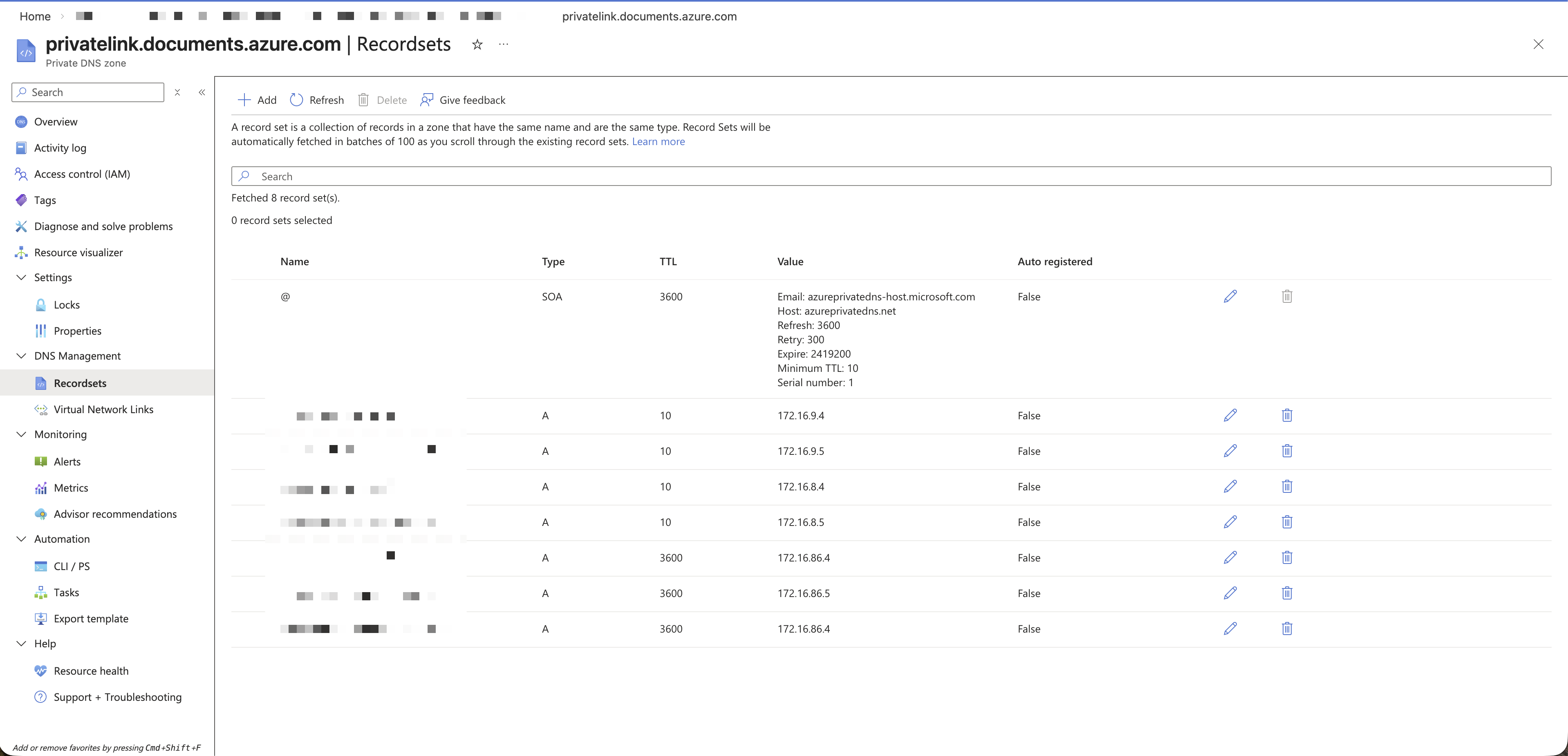
Step 3 — Link the private DNS zone
- Go to Private DNS zones →
privatelink.documents.azure.com→ Virtual network links → + Add - Link name: vnet-name
- Virtual network: vnet-name
- Auto registration: No
Step 4 — Validate from workload host
- Go to app-service-name → Advanced Tools (Kudu) → Console
- Run:
nslookup cosmos-account-name.documents.azure.com - Expected result: resolves to private-ip
Step 5 — Restart caller and disable public access
- Restart the calling app/service if DNS is cached
- Set cosmos-account-name → Networking → Public access → Disabled
Storage Account
- Resource type:
Microsoft.Storage/storageAccounts - Typical target sub-resources:
blob,file,queue,table - Common private DNS zones:
privatelink.blob.core.windows.netprivatelink.file.core.windows.netprivatelink.queue.core.windows.netprivatelink.table.core.windows.net
- Create separate private endpoints for each storage service your app uses
- Validate with
nslookup <storage-account>.blob.core.windows.net(and equivalent for file/queue/table) - After validation, restrict or disable public network access on the storage account
Key Vault
- Resource type:
Microsoft.KeyVault/vaults - Target sub-resource:
vault - Private DNS zone:
privatelink.vaultcore.azure.net - Validate with
nslookup <keyvault-name>.vault.azure.net - Disable public network access after private connectivity is confirmed
Confirm Key Vault Connectivity
Use these checks from the same host/network as your workload:
- Check DNS resolution
- Run:
nslookup <keyvault-name>.vault.azure.net - Expected: resolves to a private IP from your VNet address space
- Run:
- Check network path
- Run:
curl -I https://<keyvault-name>.vault.azure.net/ 401 Unauthorizedis a valid result here because it proves the endpoint is reachable
- Run:
- Check authenticated data-plane access
- Run:
az keyvault secret list --vault-name <keyvault-name> - Success confirms connectivity, DNS, and identity permissions are all working
- Run:
Azure SQL
- Resource type:
Microsoft.Sql/servers - Target sub-resource:
sqlServer - Private DNS zone:
privatelink.database.windows.net - Validate with
nslookup <server-name>.database.windows.net - Confirm app connectivity using existing connection strings
- Disable public network access or tighten allowed networks once private path is verified
Troubleshooting Checklist
If resolution or connectivity fails, check:
- The private endpoint connection state is
Approved - The correct
privatelinkDNS zone exists for the service type - The DNS zone is linked to the caller VNet
- DNS queries are using the expected resolver (Azure DNS or custom DNS forwarder)
- NSG/UDR rules are not blocking traffic between caller subnet and private endpoint subnet
Last updated on